
What’s changing the week of September 14, 2026: the two separate job settings you used to manage (“Enabled Online?” and “Publish job?”) are being combined into a single Visibility setting on each job, and job board publishing now lives on a new Job Board Settings page with one master switch and a toggle for each board. Nothing changes about where your jobs are currently posted. If your jobs were going to Indeed before, they still are. The steps below describe the new screens.
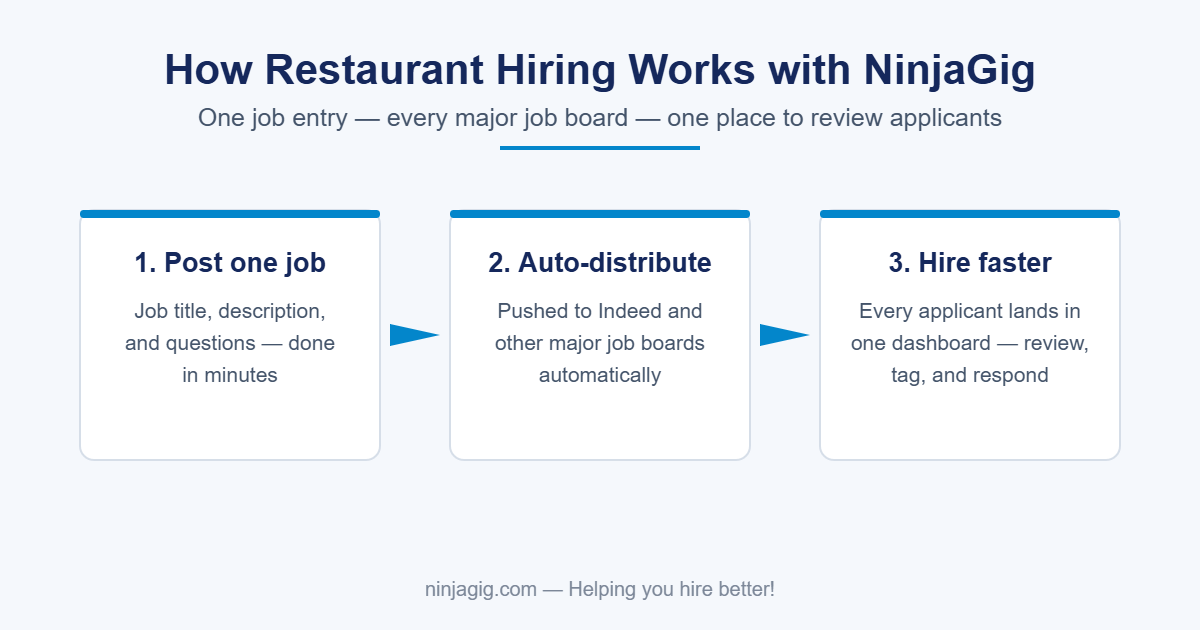
NinjaGig is an Indeed ATS partner. When you post a job in NinjaGig and make it visible to job boards, we send it to Indeed automatically, and it appears with Indeed’s “Easily apply” label so job seekers can apply without leaving Indeed. Their application lands in your NinjaGig Applications view like any other, and your hiring decisions sync back to Indeed. There is no extra fee for this, and no Indeed-side setup to do.
This page walks through the prerequisites, the exact settings to turn on, what to expect once your jobs are live, and answers to the questions we hear most often.
Before you start
You need three things:
- A NinjaGig account on any paid plan, logged in as a user with access to Job Openings and Job Board Settings (Master or Admin level).
- A completed company profile, including your company name and the street address of your primary location. Indeed uses the location to show your job to the right candidates, so jobs without a location may not be listed.
- At least one job opening with a clear title, a location, and a full description.
You do not need an Indeed employer account for your jobs to appear on Indeed through NinjaGig. If you already have one, you can optionally claim your company page on Indeed so your listings show your logo and company details, but it is not required for posting or for Indeed Apply.
Step 1: Turn on job board publishing
In the left menu, click Job Board Settings. At the top of the page you’ll see the Publish jobs to external job boards? switch. If it’s set to No, your jobs are listed on your NinjaGig career site and on Google Jobs, but they are not sent to Indeed or any other external board.

Click the switch to set it to Yes. Your change is saved automatically when you toggle; the Save Job Board Settings button confirms the current state.
Step 2: Choose which job boards to include
Once the master switch is on, the individual board toggles below it become active. Indeed is on by default. Leave it on, and turn any other boards on or off as you like. Turning a board off removes your jobs from that board’s feed on the next refresh, which is useful if you’re sponsoring jobs directly on a board and don’t want our free listing there too.

The line under the toggles tells you how many boards you’re currently publishing to. NinjaGig and Google Jobs are always included and can’t be turned off here; they’re controlled per job in the next step.
Step 3: Set each job’s Visibility
Open Job Openings → View Jobs and select the job. Find the Visibility field near the top of the job and choose where the job should appear:
- Paused – not visible anywhere. Use this when you’ve filled the role or want to stop receiving applications without deleting the job.
- NinjaGig + Google Jobs – the job appears on your career site and in Google job search results, but is not sent to external boards.
- All my job boards – the job appears on your career site, Google Jobs, and every board you turned on in Job Board Settings, including Indeed.

Choose All my job boards and save the job. That’s it. Within 24 hours the job will be picked up by Indeed.
Make your job Indeed-ready
Indeed reviews every job before listing it, and jobs that meet their posting standards are listed faster and shown to more candidates. A few fields in NinjaGig matter more than the rest:
- Job Title – keep it short and use the real title, for example “Line Cook” rather than “Line Cook – Hiring Now – Great Pay!!” Indeed suppresses titles stuffed with extra words.
- Employment Type – full-time, part-time, and so on. Optional in NinjaGig, but it helps Indeed match your job to the right searches.
- Work location type and Street Address – on-site, hybrid, or remote, plus the address of the location. Indeed needs one location per job.
- Job Description – describe the role, responsibilities, and requirements. Don’t put phone numbers, email addresses, or “call us to apply” in the description; Indeed treats those as a reason to remove the listing, since candidates should apply through the job itself.
- One job per role per location. Posting the same role several times, or the same posting for several locations, is flagged as duplicate content and can affect all of your listings.
What to expect once your jobs are on Indeed
Timing. New and updated jobs are sent to Indeed continuously and typically appear within 24 hours. Jobs you pause are removed on the same schedule.
How candidates apply. Your job shows Indeed’s “Easily apply” label. Candidates can apply on Indeed’s website or mobile app without leaving Indeed, and the application is delivered to NinjaGig within minutes. Roughly three quarters of Indeed applications are submitted from a phone, so this is the experience most of your applicants will have.
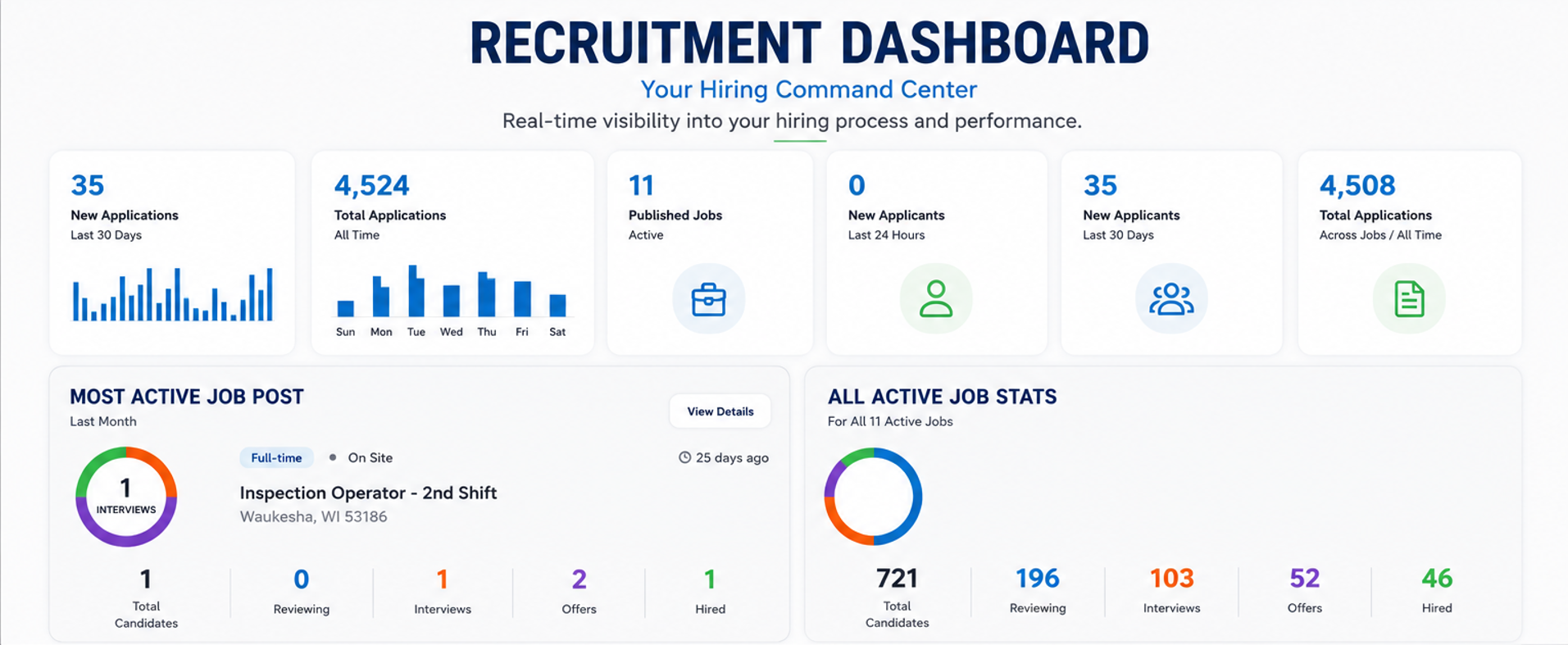
Where applications land. Indeed applications appear in Applications alongside applications from your career site and other boards, tagged with Indeed as the source. You review, rate, and move them through your pipeline exactly the same way. Email notifications to your recipients work as usual.
Status sync back to Indeed. As you move candidates through your NinjaGig pipeline (reviewed, interviewing, hired, not selected), those decisions are sent back to Indeed. This is not visible to candidates. It helps Indeed learn which applicants are a good fit for your jobs, which improves the quality of the candidates it sends you over time. You don’t need to do anything to enable it.
Refreshes. To keep your jobs from going stale on Indeed, NinjaGig periodically refreshes active postings. The “Date Posted” shown on the job reflects the latest of when the job was created, made visible, or refreshed.
Pausing or removing a job from Indeed
To remove a single job, set its Visibility to Paused or to NinjaGig + Google Jobs. To remove all of your jobs from Indeed while leaving them on other boards, turn off the Indeed toggle in Job Board Settings. To stop sending jobs to every external board at once, set the master switch to No. In each case, allow up to 24 hours for the change to reach Indeed.
If you used the previous settings
Before this update, each job had two fields: Enabled Online? and Publish job?. The new Visibility field replaces both, and we’ve converted your existing jobs automatically:

- A job that was enabled and set to publish to job boards is now All my job boards.
- A job that was enabled but not published is now NinjaGig + Google Jobs.
- A job that was disabled is now Paused.
The company-wide “Publish jobs to job boards” setting that used to live in your profile has moved to the Job Board Settings page, with the same value you had before. Your Indeed listings are not affected by the change.
Frequently asked questions
My job has been set to All my job boards for more than a day and I don’t see it on Indeed. First, check Job Board Settings and confirm the master switch is Yes and the Indeed toggle is on. Then look at the job itself for anything Indeed may have rejected: a phone number or email in the description, a title with extra promotional words, a missing location, or a near-duplicate of another posting. Fix the job and it will be re-sent on the next refresh. If everything looks right, contact NinjaGig support and we’ll check the feed.
Can I sponsor my NinjaGig job on Indeed? Yes. Once the job appears on Indeed, you can sponsor it from your Indeed employer account like any other listing. Applications from a sponsored job still come into NinjaGig the same way.
Do Indeed applicants answer my NinjaGig application questions? Applicants who apply through Indeed Apply complete Indeed’s streamlined application, and we deliver it to NinjaGig with their resume and contact details. If you require candidates to answer specific questions before you’ll consider them, you can send them a link to your full NinjaGig application after you receive their Indeed application.
Does this cost extra? No. Posting to Indeed and Indeed Apply are included in your NinjaGig subscription.
How do I turn off Indeed but keep my jobs on other boards? In Job Board Settings, leave the master switch on and turn off the Indeed toggle.
Questions about the change or about your Indeed listings? Reach us through Help in your NinjaGig menu and we’ll get you sorted.
Related guides
- Job Board Syndication: What It Is, How It Works & Why It Matters
- Best Job Boards: The Complete Guide to Faster, Smarter Hiring
- ATS Integration: The Ultimate Small-Business Guide to Streamlined Hiring
New to NinjaGig? Indeed is just the start — explore NinjaGig’s job board integrations that push your openings to all the major boards automatically.